
Knowledge base › Getting started
How to log in to your Client Area and open cPanel
Everything starts here: your Client Area for billing and services, and cPanel for your website and email.
- 1
Open the Client Area
In your browser, go to my.hosteran.com. Bookmark this page, because you’ll use it often.
- 2
Sign in
Enter the email address you used when you ordered, then your password, and click Login. Forgotten it? Click Forgotten your password? under the button and follow the link we email you.
- 3
Open your hosting service
Once you’re in, open the list of your services and click the hosting plan that belongs to your website (for example Business – yourbusiness.ie).
- 4
Launch cPanel
On the service page, click the button to log in to cPanel. It opens in a new tab and signs you in automatically, so you don’t need a separate password.
- 5
Find your way around cPanel
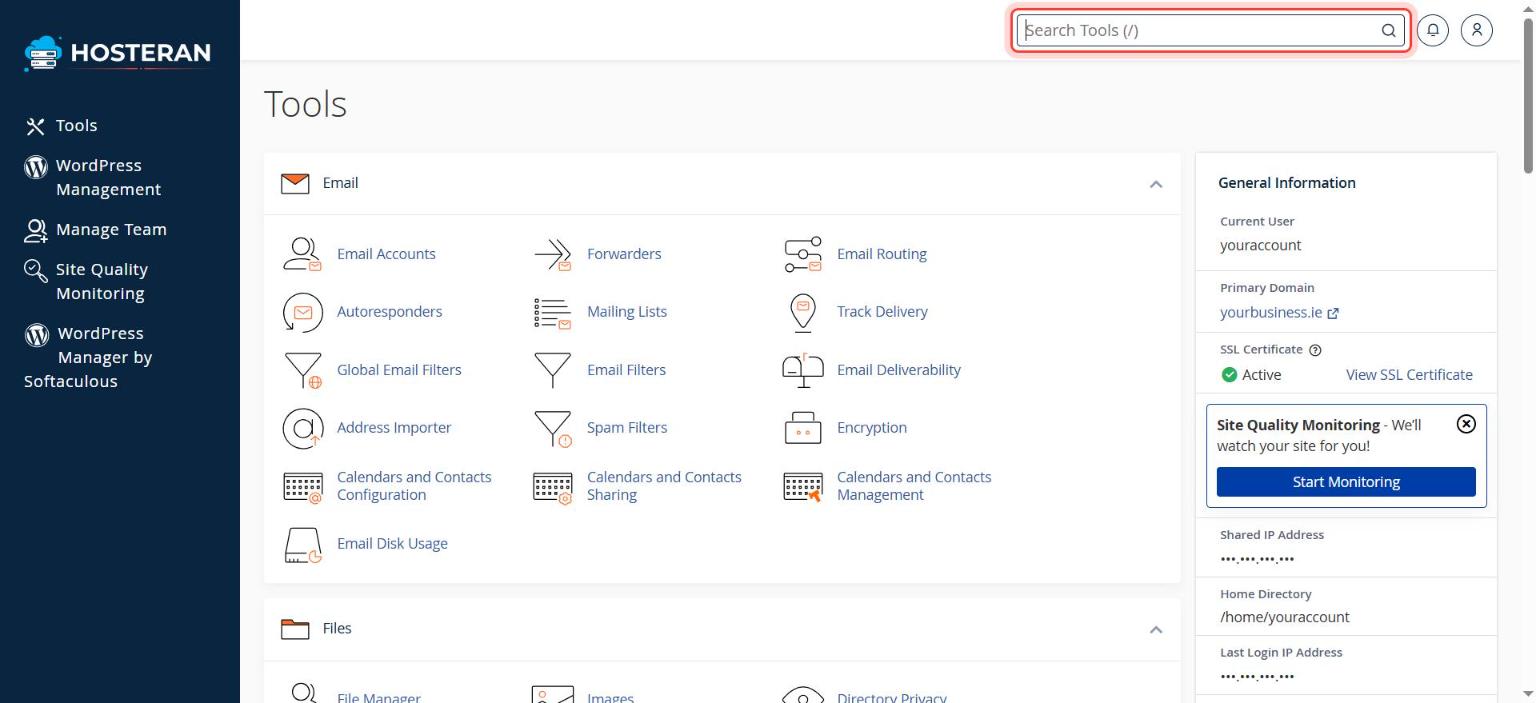
The cPanel home page is a list of tools grouped into sections: Email, Files, Databases, Domains, Security, Software and so on. The quickest way to find any tool is the Search Tools box at the top: type “email”, “backup” or “PHP” and click the result.
- Never share your Client Area password. Our team will never ask you for it by email or phone.
- Turn on two-factor authentication in cPanel (Security → Two-Factor Authentication) for extra protection.
Stuck on a step? Open a ticket and tell us the step number.