
How to upload, edit and delete files (File Manager)
Manage your website files in the browser, without extra software.
- 1
Open File Manager
In cPanel, in the Files section, click File Manager.
- 2
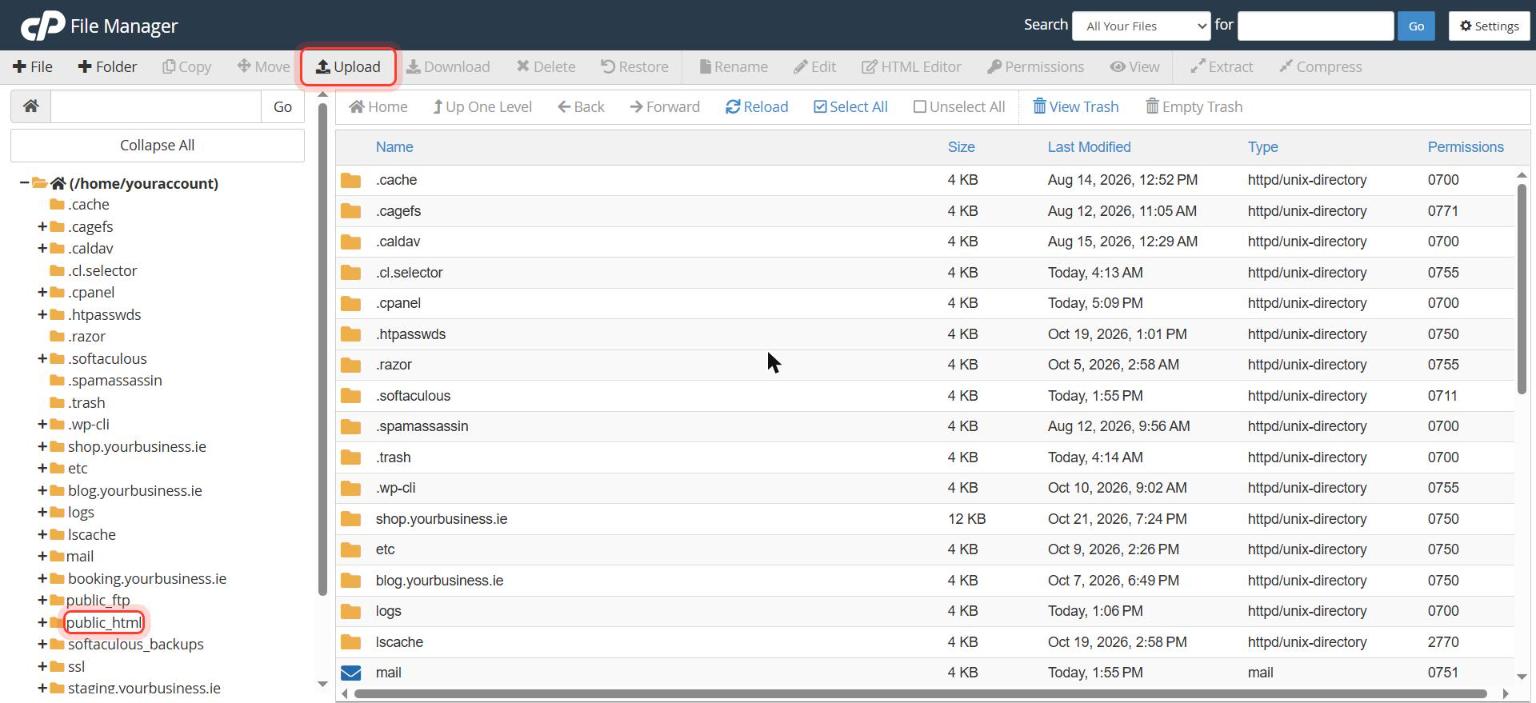
Open the right folder
Your main website is in public_html. Extra domains have their own folders.
- 3
Upload
Click Upload and drag the files in. To upload a whole folder, ZIP it first and use Extract afterwards.
- 4
Edit or rename
Right-click a file to Edit, Rename, Copy or Move it.
- 5
Delete carefully
Select the file and click Delete. Deleted files go to the trash unless you tick Skip the trash.
Good to know
- To see hidden files such as .htaccess, click Settings (top right) and tick Show Hidden Files.
Stuck on a step? Open a ticket and tell us the step number.