
How to create an FTP account and connect with FileZilla
Useful for web designers who upload many files.
- 1
Open FTP Accounts
In cPanel, in the Files section, click FTP Accounts.
- 2
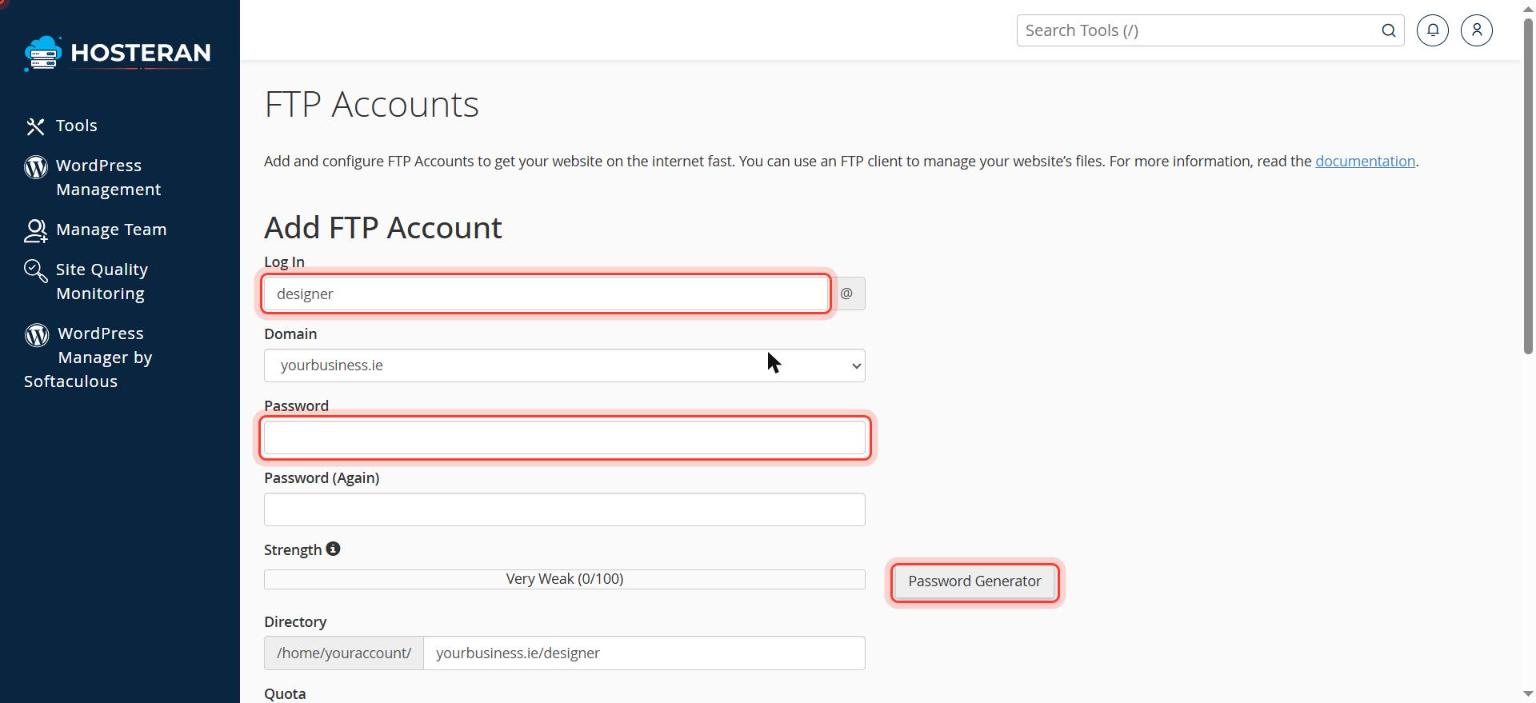
Create the account
Enter a Log In name, choose the domain, set a strong password and limit the Directory to the folder this person needs (e.g.
public_html). Click Create FTP Account. - 3
Find the connection details
In the list, click Configure FTP Client next to the account. You’ll see the username, server and port.
- 4
Connect in FileZilla
Open FileZilla. Enter Host: the server shown (e.g.
ftp.yourbusiness.ie), Username: the full FTP username (with @yourbusiness.ie), Password, Port: 21, and click Quickconnect. Accept the certificate if asked. - 5
Transfer files
Your computer is on the left, the server on the right. Drag files from left to right to upload.
Good to know
- Delete FTP accounts you no longer need, for example after a web designer has finished.
Stuck on a step? Open a ticket and tell us the step number.