
How to add or change a DNS record (A, CNAME, MX, TXT)
Needed to verify Google or Microsoft 365, connect a shop platform or set up email security.
- 1
Open Zone Editor
In cPanel, in the Domains section, click Zone Editor.
- 2
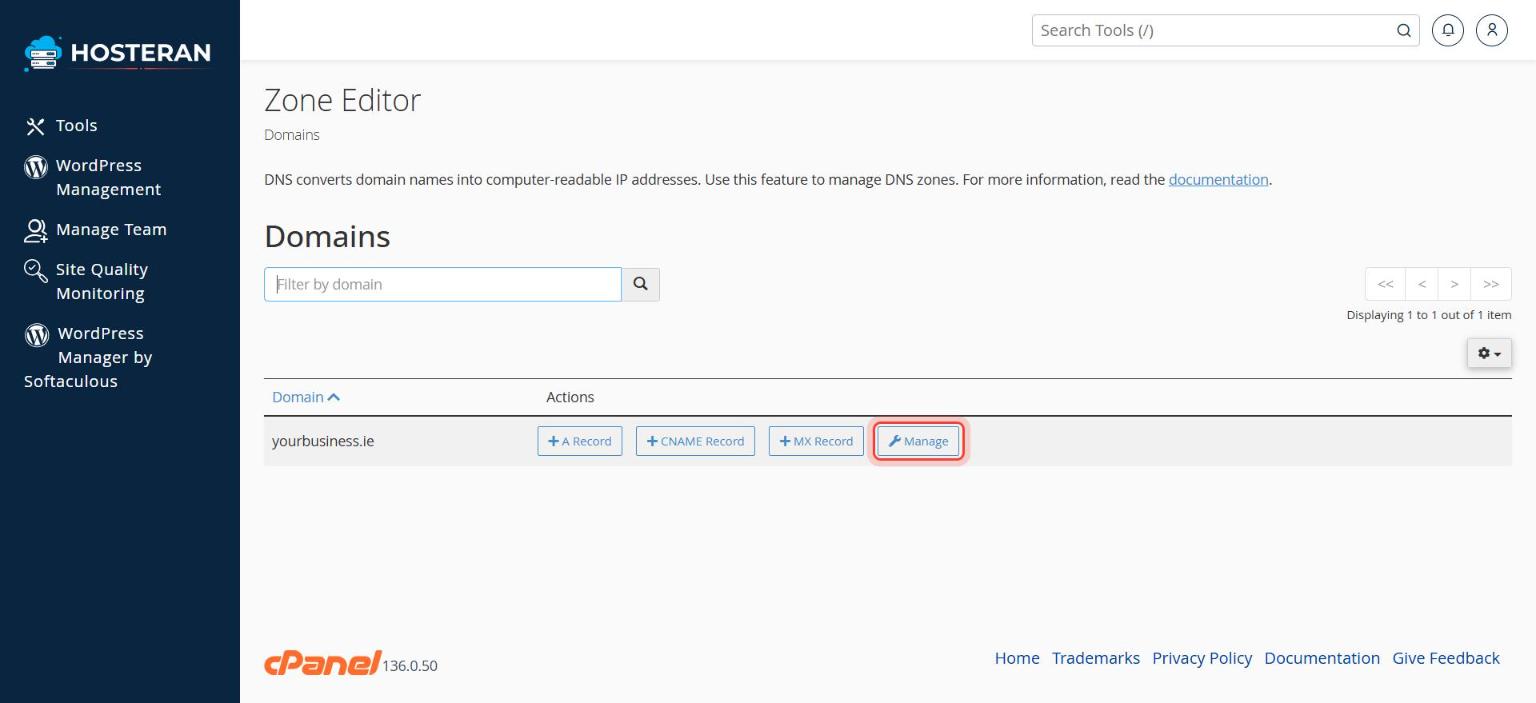
Click “Manage”
Next to your domain, click Manage. You’ll see all the records for the domain.
- 3
Add the record
Click + Add Record (the arrow next to it lets you choose the type), then choose the type you were given: A, CNAME, MX or TXT.
- 4
Fill in the values exactly
Name: what the service tells you (for the domain itself use
yourbusiness.ie.). TTL: leave the default. Record: paste the value exactly, with no extra spaces. Example for a Google verification: type TXT, valuegoogle-site-verification=…. - 5
Save and check
Click Save Record. Most changes work within minutes, but allow up to a few hours before trying the verification again.
- Don’t delete MX records unless you’re moving your email elsewhere. Without them, email stops arriving.
- To check email security records, open Email → Email Deliverability. It shows whether SPF and DKIM are correct and can repair them.
Stuck on a step? Open a ticket and tell us the step number.