
Knowledge base › Databases & PHP
How to change the PHP version
Choose the PHP version your website needs.
- 1
Open the PHP tool
In cPanel, in the Software section, click Select PHP Version (if you see MultiPHP Manager instead, use that). In cPanel, type the tool name in the Search Tools box at the top of the page if you can’t see it straight away.
- 2
See the current version
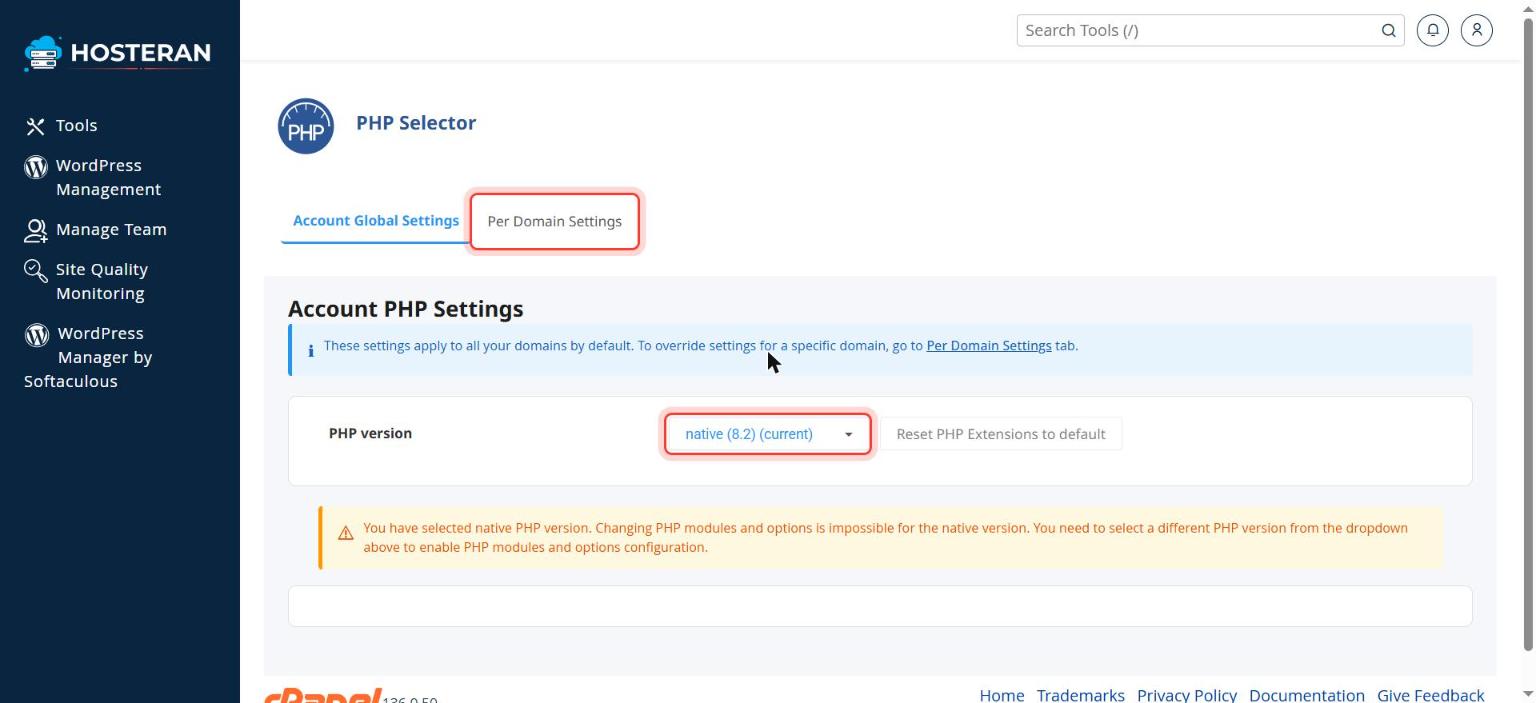
On the Account Global Settings tab, next to PHP version, a drop-down shows the version in use, e.g. native (8.2) (current).
- 3
Choose the new version
Open the list and choose the newest version your website and plugins support. WordPress shows its recommended version on wordpress.org/about/requirements.
- 4
Save the change
The new version is applied as soon as you pick it from the list (if a confirmation appears, confirm it). To change only one website, use the Per Domain Settings tab instead. (In MultiPHP Manager: tick your domain, choose the version on the right and click Apply.)
- 5
Check your site
Open your website and click around. If anything looks wrong, change back to the previous version and contact us.
Stuck on a step? Open a ticket and tell us the step number.