
How to download a full backup to your computer
Keep your own copy of your website, databases and email.
- 1
Open Backup
In cPanel, in the Files section, click Backup (or type “backup” in Search Tools).
- 2
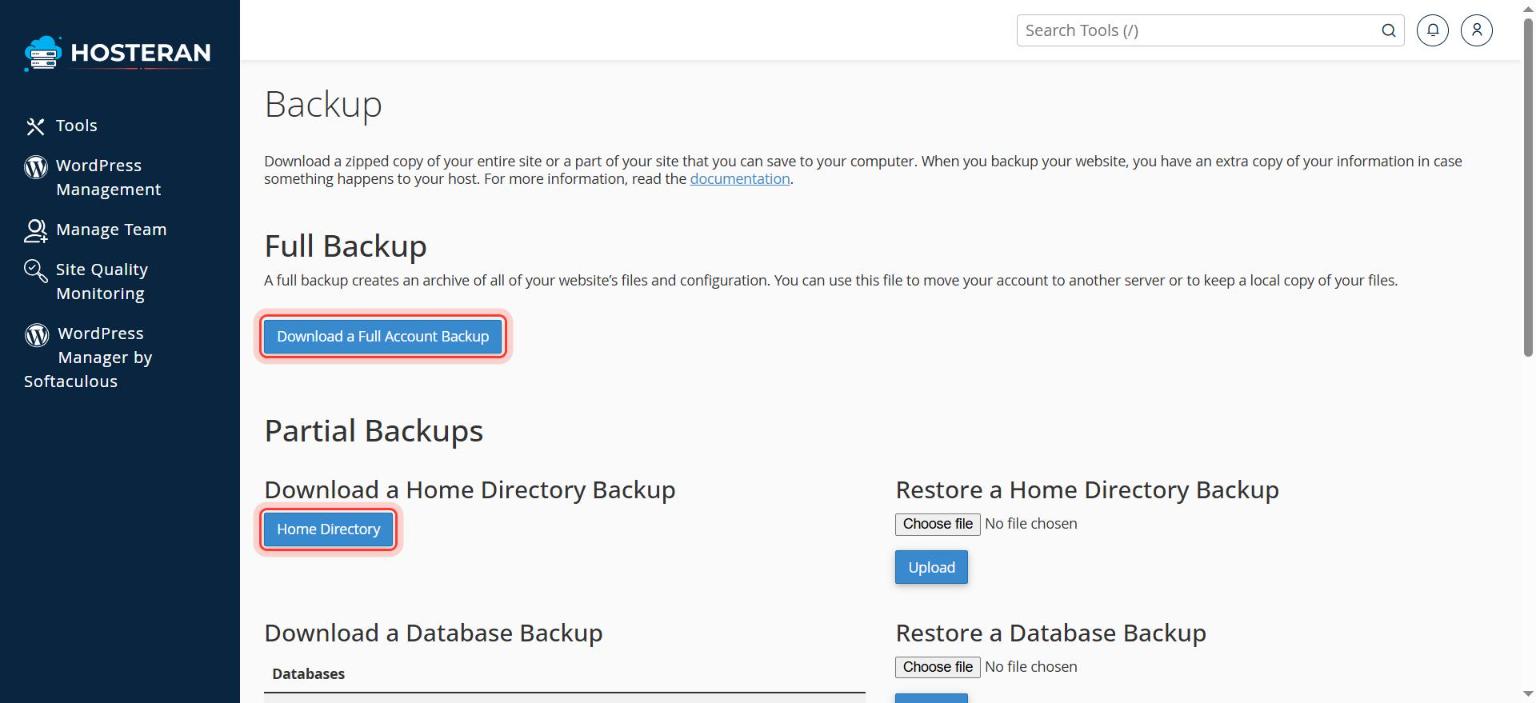
Choose a full backup
Under Full Backup, click Download a Full Account Backup.
- 3
Choose where to save it
Leave Backup Destination on Home Directory and choose to receive an email when it’s ready.
- 4
Generate it
Click Generate Backup. Larger accounts can take a while; you’ll get an email when it’s finished.
- 5
Download the file
Go back to the Backup page. The new file appears under Backups Available for Download. Click it and save it somewhere safe, such as an external drive or cloud storage.
- 6
Delete the copy on the server
The backup file uses your hosting storage. After downloading, delete it from your home directory in File Manager.
Good to know
- A full account backup is for keeping or moving your account. To get a single day back quickly, use the restore steps above.
Stuck on a step? Open a ticket and tell us the step number.