
How to install WordPress in one click (Softaculous)
A fresh WordPress website ready in about two minutes.
- 1
Open Softaculous
In cPanel, find the Softaculous Apps Installer section and click the WordPress icon.
- 2
Click “Install Now”
On the WordPress page, click the blue Install Now button.
- 3
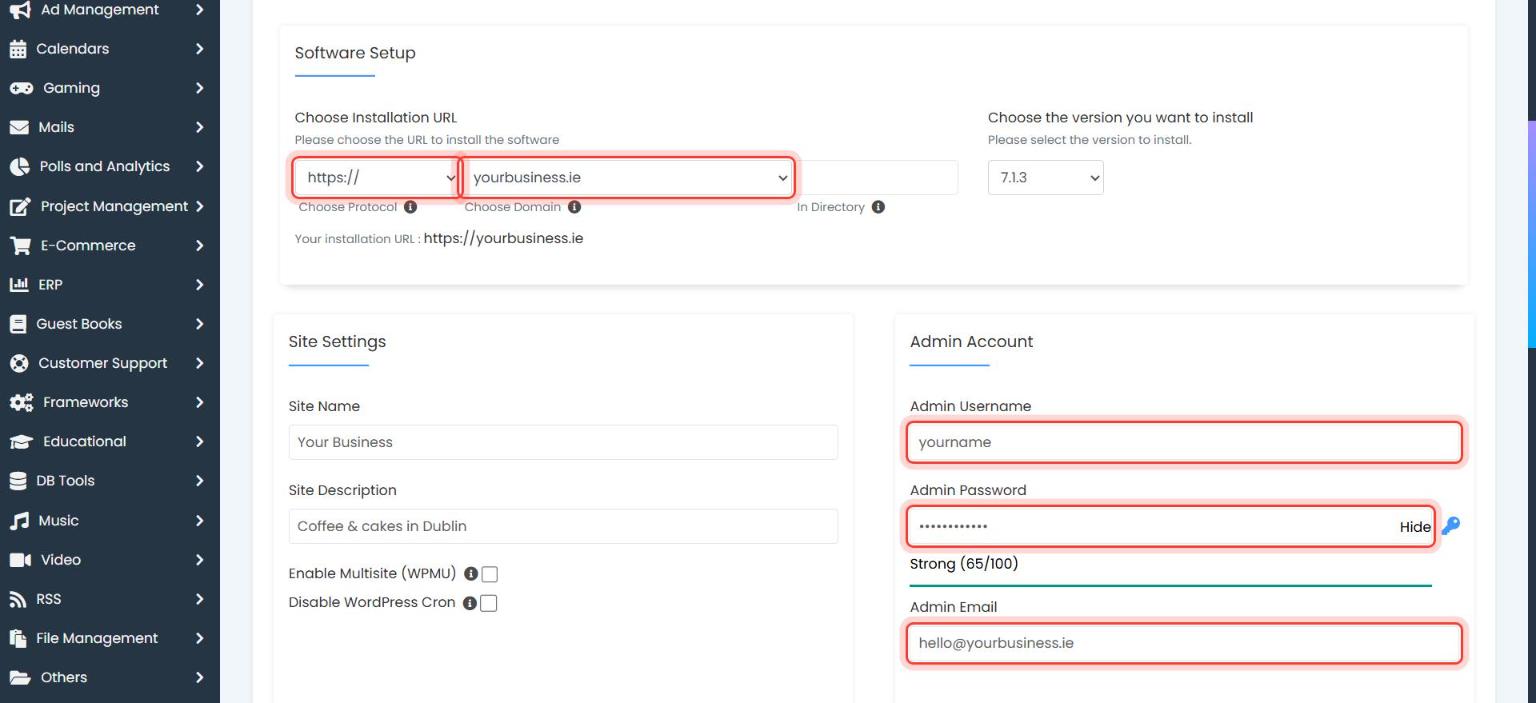
Choose the address
Choose Protocol:
https://. Choose Domain: your domain. In Directory: leave it empty, otherwise the site will be at yourbusiness.ie/wp instead of the main address. - 4
Name your site
Under Site Settings, type the Site Name and a short Site Description. You can change both later.
- 5
Create the administrator
Under Admin Account, choose a username that is not “admin”, a strong password and your email address. Write them down.
- 6
Install
Choose the language, scroll down and click Install. After a minute you’ll see two links: your website, and the admin area (
yourbusiness.ie/wp-admin).
- If an old “Coming soon” or index.html file is in public_html, Softaculous will warn you. Delete it first or choose to overwrite.
Stuck on a step? Open a ticket and tell us the step number.