
Knowledge base › Website & hosting
How to upload a simple website (HTML)
Put your website files live in the right folder.
- 1
Prepare a ZIP file
Put all your website files in one ZIP file. On Windows: select the files, right-click, Send to → Compressed (zipped) folder. Your home page must be called
index.html. - 2
Open File Manager
In cPanel, in the Files section, click File Manager.
- 3
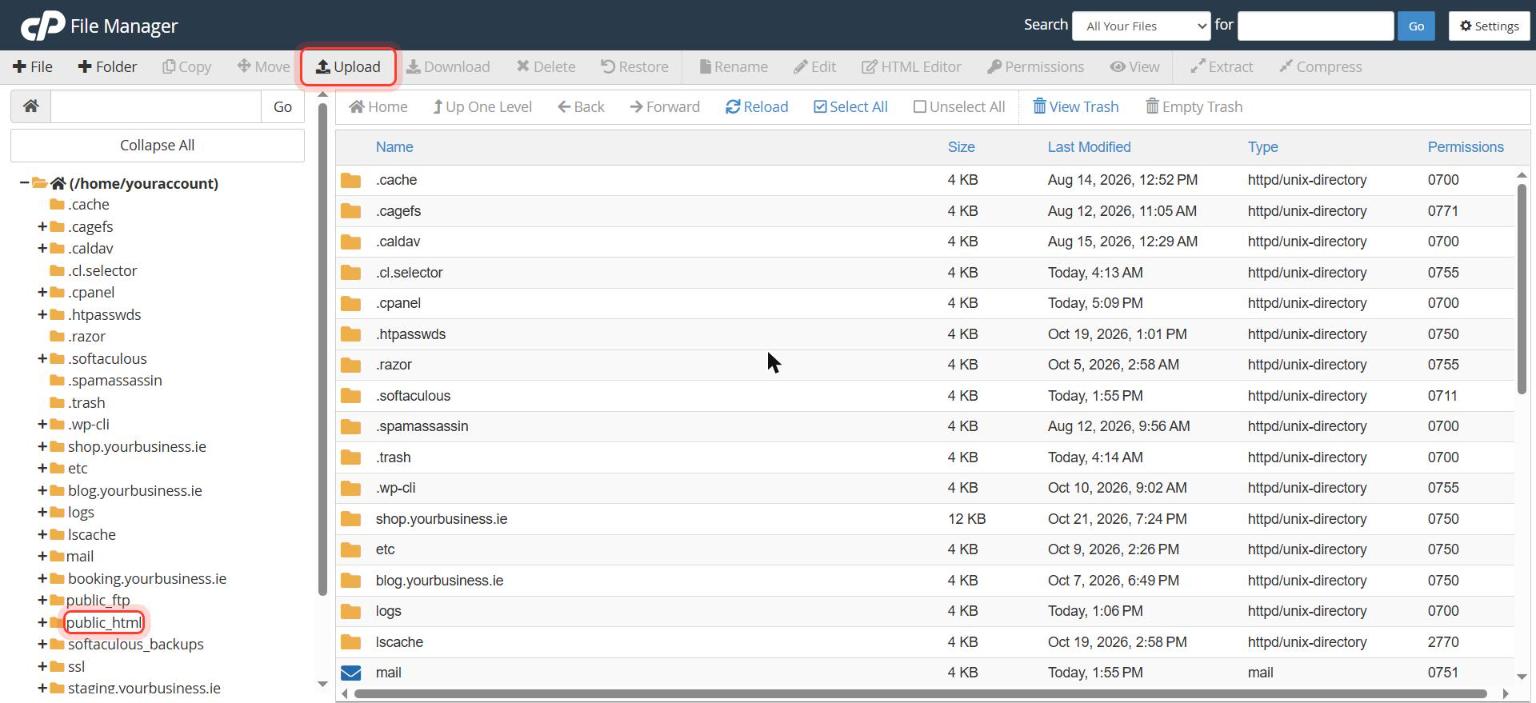
Go to public_html
In the left column, click public_html. This is the folder your main domain shows to visitors.
- 4
Upload the ZIP
Click Upload in the top toolbar, drag the ZIP into the window and wait for the green 100% bar. Then click Go Back to “/home/…/public_html”.
- 5
Extract it
Right-click the ZIP and choose Extract, then Extract Files. Delete the ZIP afterwards. Open your domain in a browser: your site is live.
Good to know
- If you see the files listed instead of your site, the home page isn’t named index.html or it’s inside an extra folder. Move the files directly into public_html.
Stuck on a step? Open a ticket and tell us the step number.