
How to create an email address
Create as many professional mailboxes as your plan allows, in less than two minutes.
- 1
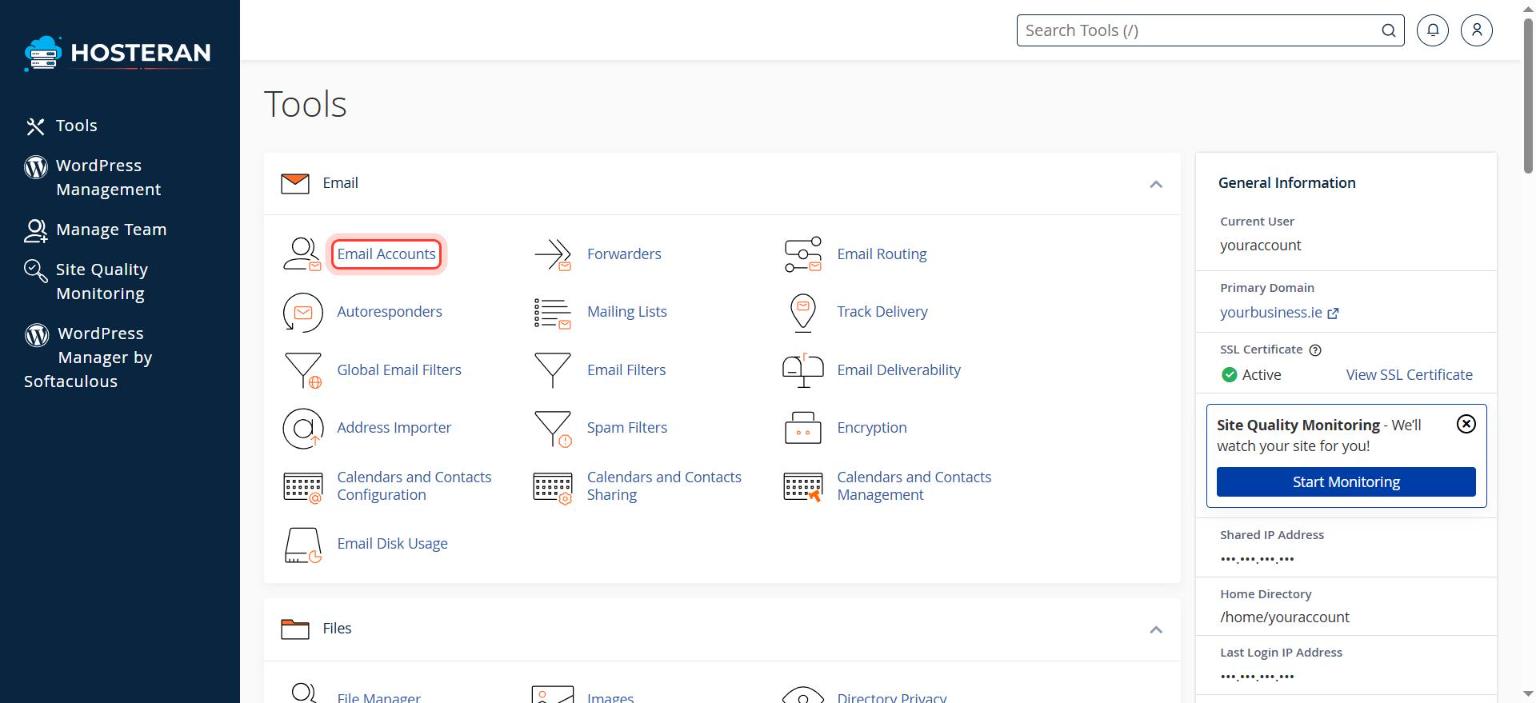
Open Email Accounts
Log in to cPanel (see Log in and open cPanel). In the Email section, click Email Accounts.
- 2
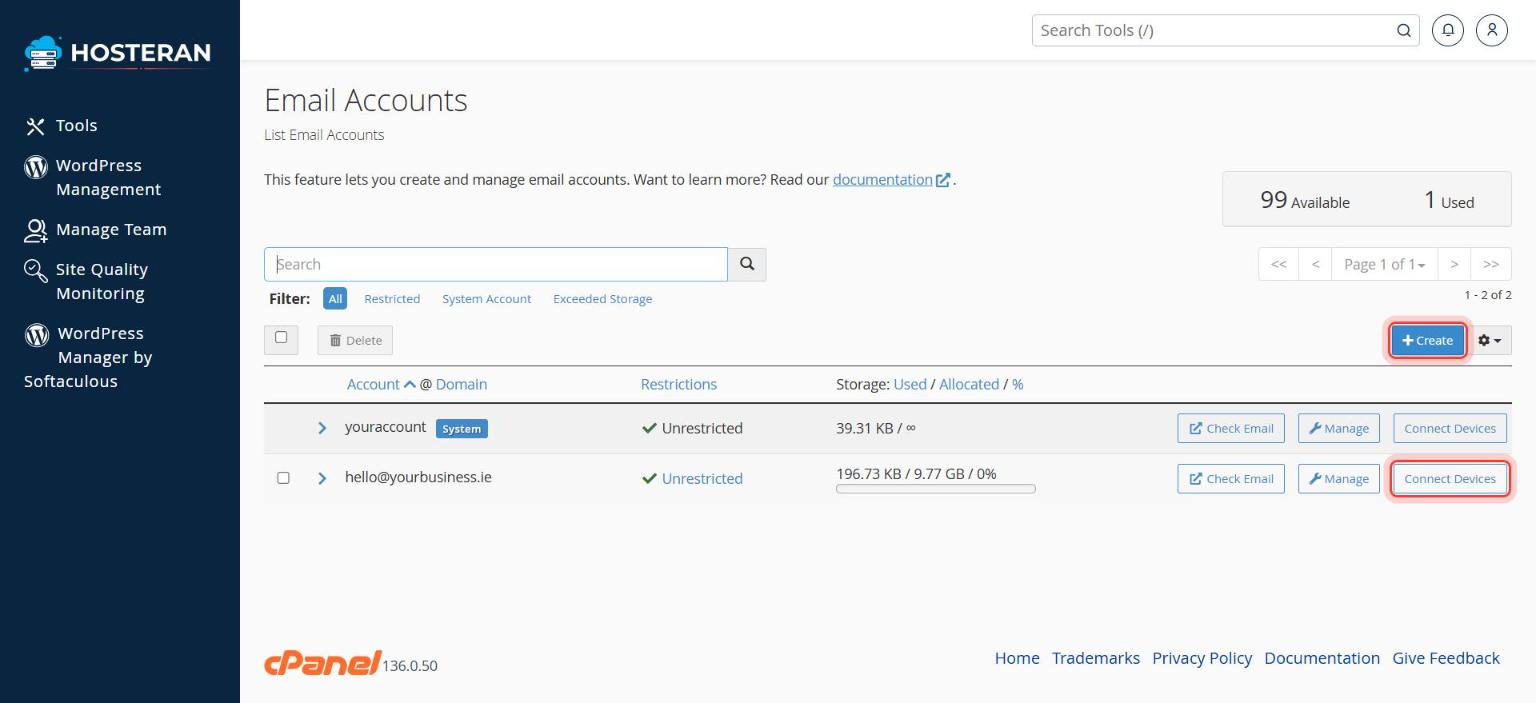
Click “+ Create”
On the right, click the blue + Create button.
- 3
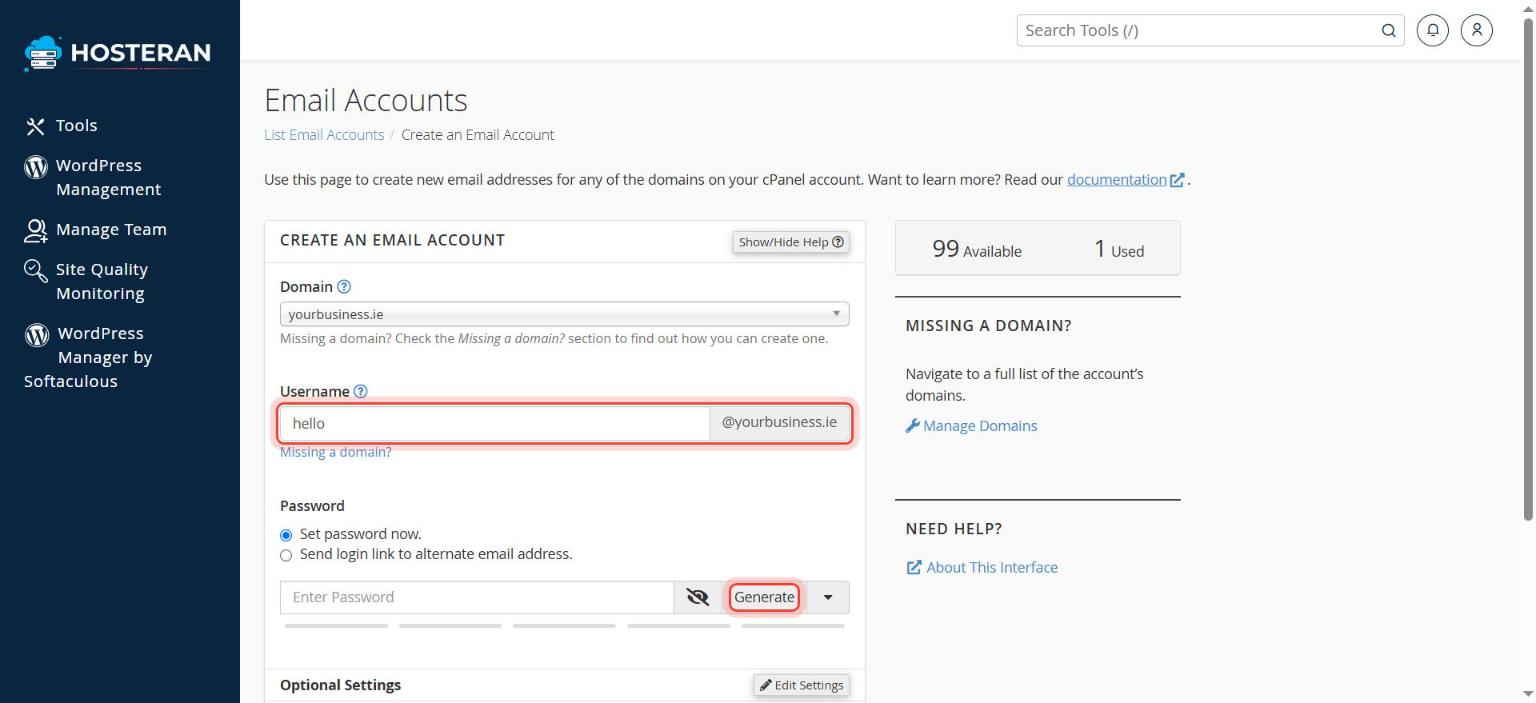
Choose the domain and the name
If you have more than one domain, pick the right one from the Domain list. In Username type the part before the @, for example
hello,infoorjohn. - 4
Set a strong password
Click Generate for a strong password, or type your own (at least 12 characters, mixing letters, numbers and symbols). Copy it somewhere safe now: you’ll need it on your phone and computer.
- 5
Choose the storage
Under Storage Space you can leave the default or set a limit. Unlimited uses your plan’s total storage.
- 6
Create the mailbox
Click + Create at the bottom. You’ll see a green message and the new address in the list. You can read your email straight away by clicking Check Email next to it (webmail).
- Use a shared address such as
info@orhello@on your website, and personal addresses for staff. - If you’d rather receive mail in an existing inbox, create a forwarder instead of a mailbox.
Stuck on a step? Open a ticket and tell us the step number.