
How to find your email settings (incoming and outgoing servers)
The exact server names and ports to use in any email app.
- 1
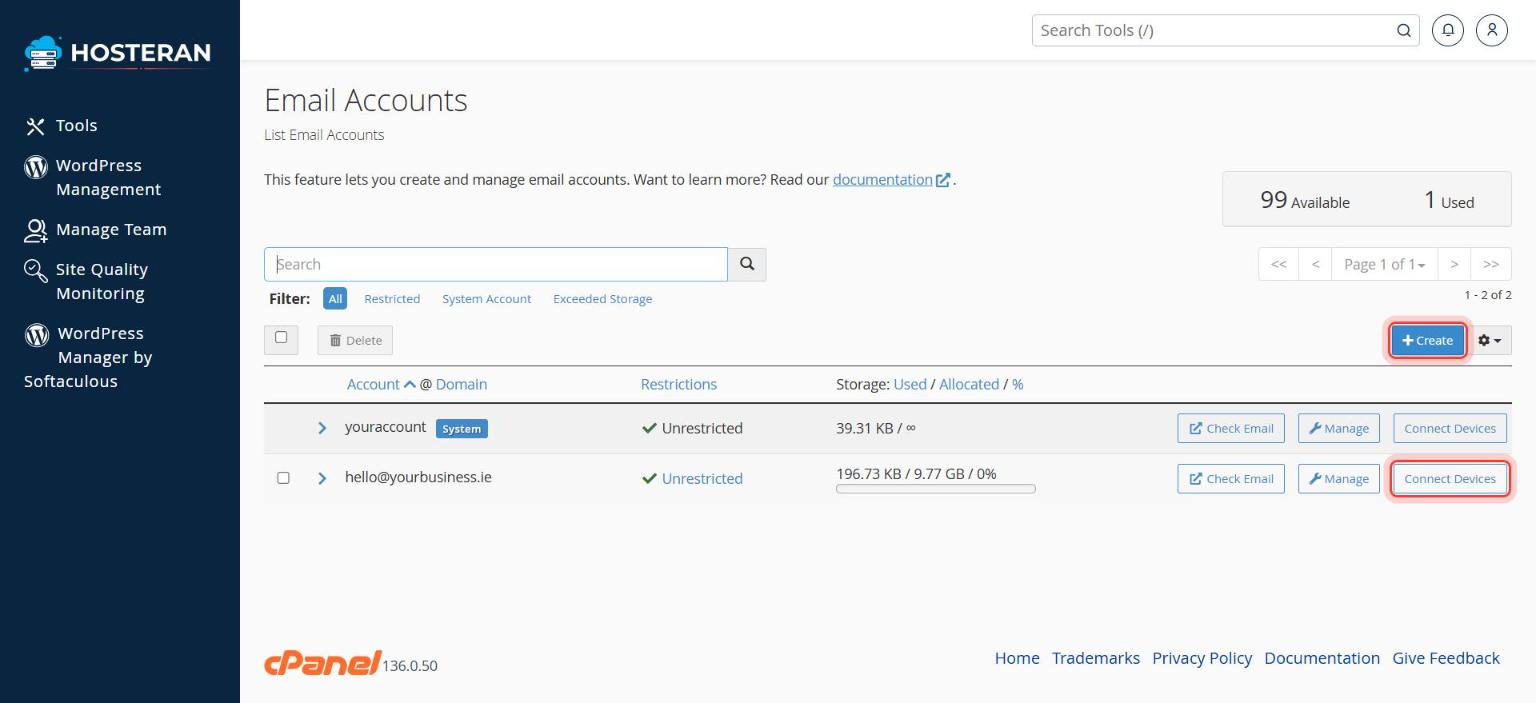
Open Email Accounts
In cPanel, open Email → Email Accounts.
- 2
Click “Connect Devices”
Find your address in the list and click Connect Devices next to it.
- 3
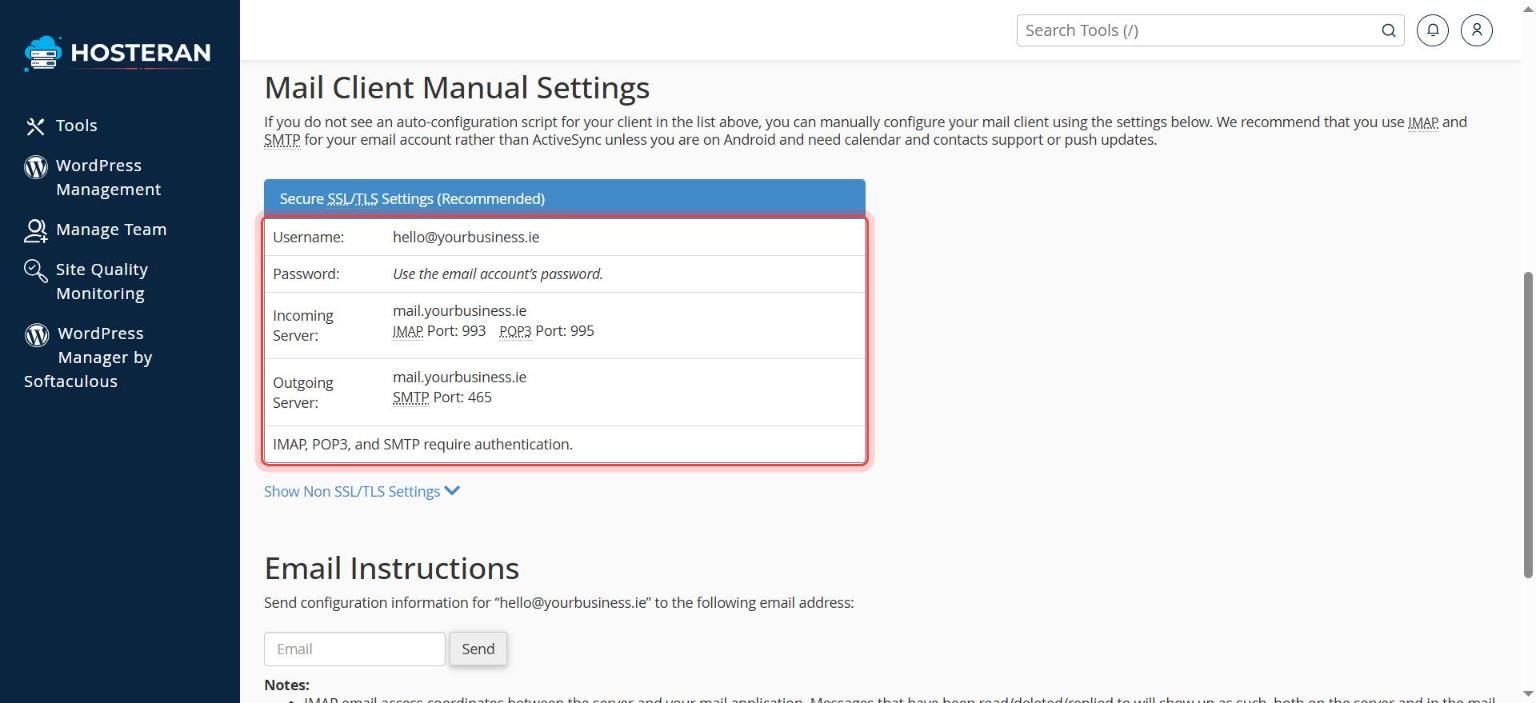
Read the secure settings
Look at the box Secure SSL/TLS Settings (Recommended). Normally it shows:
• Username: your full email address
• Incoming server:mail.yourbusiness.ie, IMAP port 993 (POP3 port 995)
• Outgoing server (SMTP):mail.yourbusiness.ie, port 465
• IMAP, POP3 and SMTP all require authentication (your email password). - 4
Use exactly these values
Always copy the values shown on your Connect Devices page: they are the correct ones for your account. Replace
yourbusiness.iewith your own domain.
Good to know
- Choose IMAP, not POP3, if you read email on more than one device. IMAP keeps everything in sync.
Stuck on a step? Open a ticket and tell us the step number.